
The Lecturers module allows QA staff to view a comprehensive directory of all teaching staff. From here, you can drill down into a specific lecturer's profile to see exactly which courses they are teaching and how many students are enrolled in those courses.
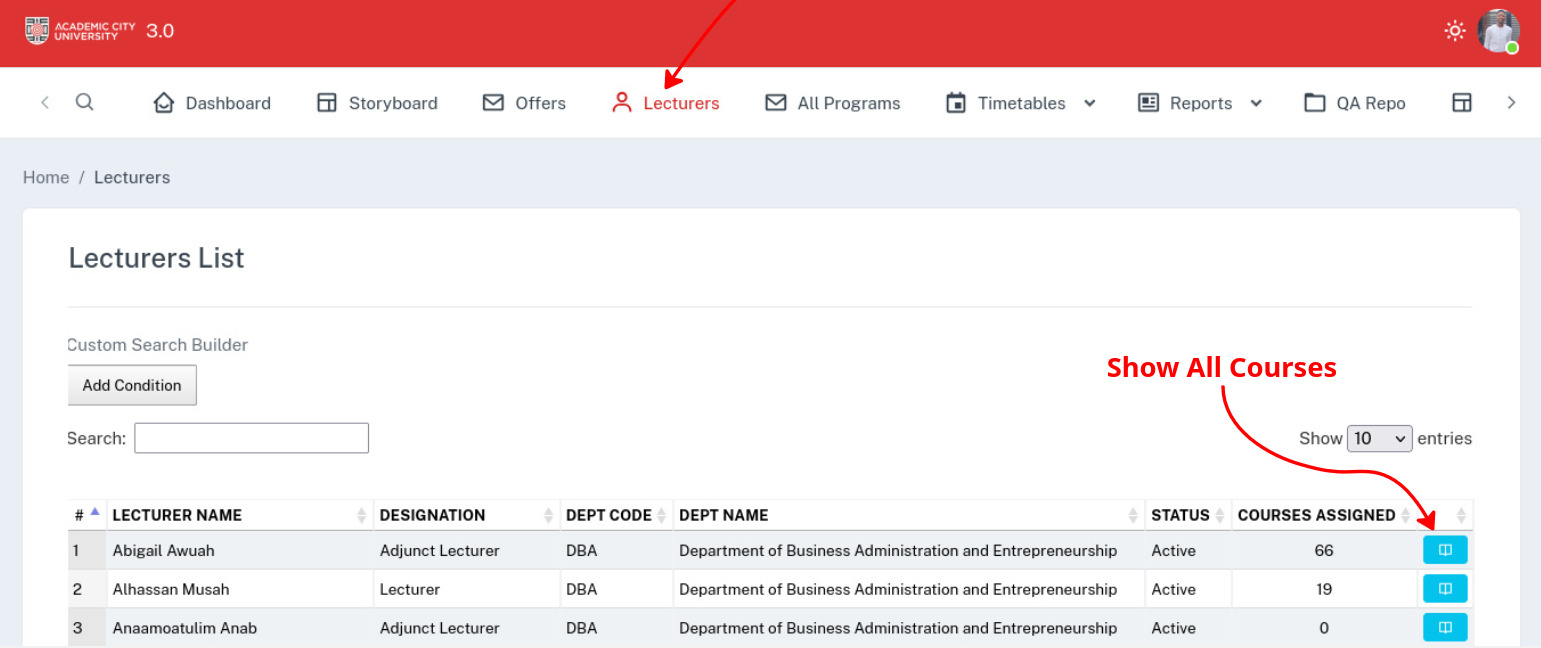
When you click Lecturers in the top navigation bar, you are presented with the master list of all academic staff in the system.
Search & Filtering Tools
Custom Search Builder: If you need to run a complex search, click "Add Condition". This allows you to filter the list by specific criteria (e.g., finding all lecturers in a specific department, or only those with a certain designation).
Search: A standard text box to quickly find a lecturer by typing their name.
Show [10] entries: Controls how many rows are displayed on the screen at once.
Understanding the Table Columns
#: The row number.
LECTURER NAME: The full name of the staff member.
DESIGNATION: Their academic rank (e.g., Adjunct Lecturer, Lecturer, Senior Lecturer).
DEPT CODE / DEPT NAME: The department they belong to (e.g., DBA - Department of Business Administration and Entrepreneurship).
STATUS: Shows if they are currently Active or Inactive.
COURSES ASSIGNED: The total number of courses currently assigned to them.
Example: Abigail Auwah has 66 courses assigned, while AnamoatuIim Anab has 0.
The Action Button
On the far right of every row, there is a blue action button (highlighted by your red arrow).
Show All Courses: Clicking this button opens a detailed view of every single course that specific lecturer is assigned to.
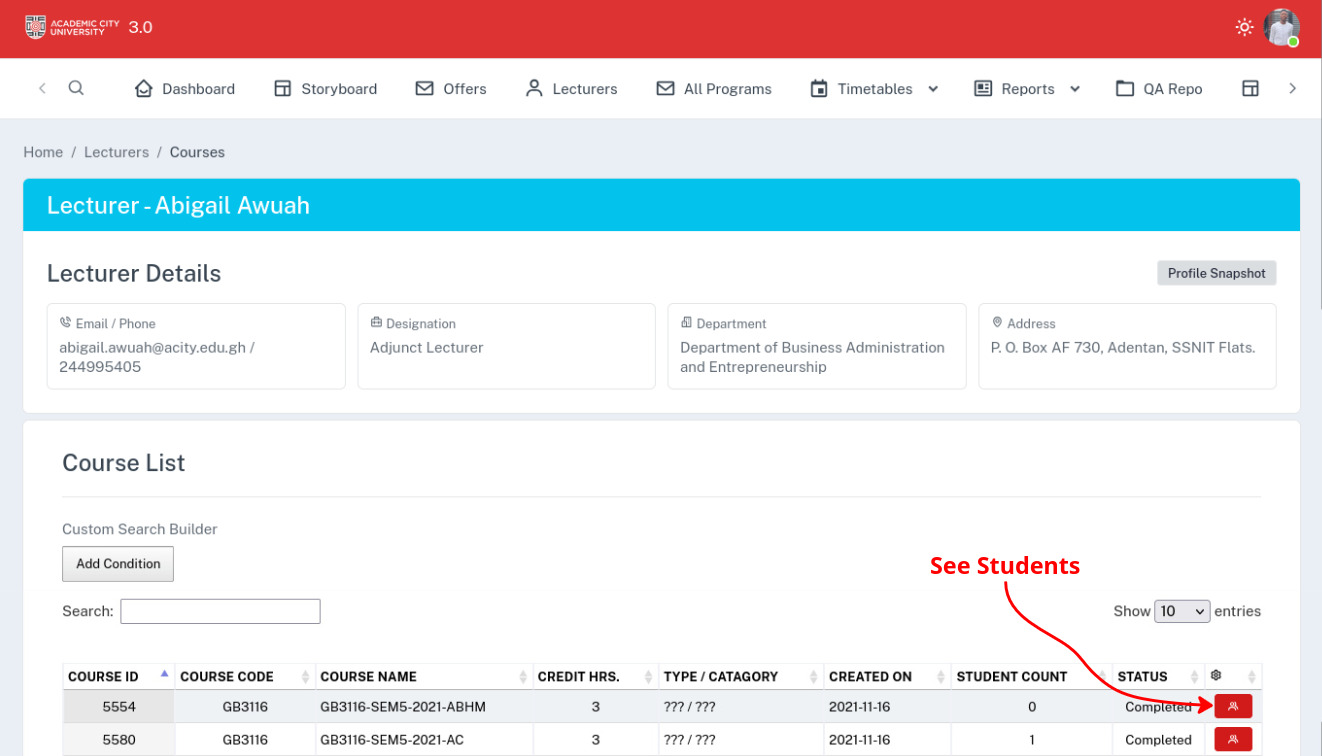
When you click the Show All Courses button, you are taken to the specific lecturer's dashboard.
A. Lecturer Details
This area gives you a quick profile of the staff member:
Email / Phone: Their direct contact information.
Designation: Their official role.
Department: The department they belong to.
Address: Their physical contact address on file.
Profile Snapshot: A grey button on the top right that likely generates a downloadable summary of their profile for physical filing.
B. Course List
This table shows exactly what this lecturer is teaching.
COURSE ID / COURSE CODE / COURSE NAME: The unique identifiers for the class (e.g., GB3116).
CREDIT HRS: How many credits the course is worth.
TYPE / CATEGORY: Shows the course classification.
CREATED ON: When the course was added to the system.
STUDENT COUNT: How many students are currently registered for that specific course.
STATUS: The current state of the course (e.g., Completed).
The Action Button
On the far right of the Course List (highlighted by your red arrow), there is a red icon with a person and a search glass.
See Students: Clicking this button will open a list showing exactly which students are enrolled in that specific course. This is highly useful for QA to verify class sizes and ensure students are correctly assigned.