
his section is a critical administrative hub for the Head of Department. It is where you review, approve, or reject official academic requests submitted by students, such as repeating a course, resitting an exam, or changing their degree program.
When you click Student Requests in the top menu, a dropdown appears with four options: Re-registrations, Sem Repeat, Resit Requests, and Program Change.
1. Re-registrations
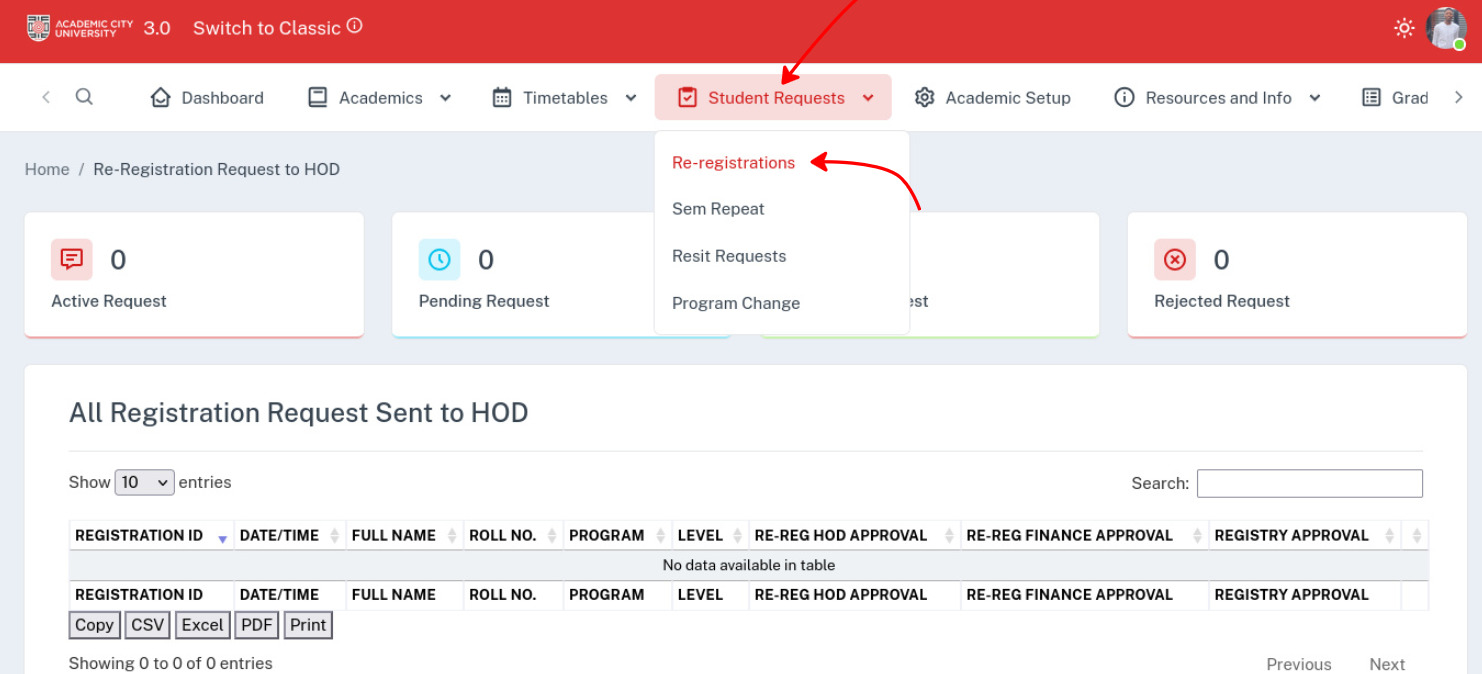
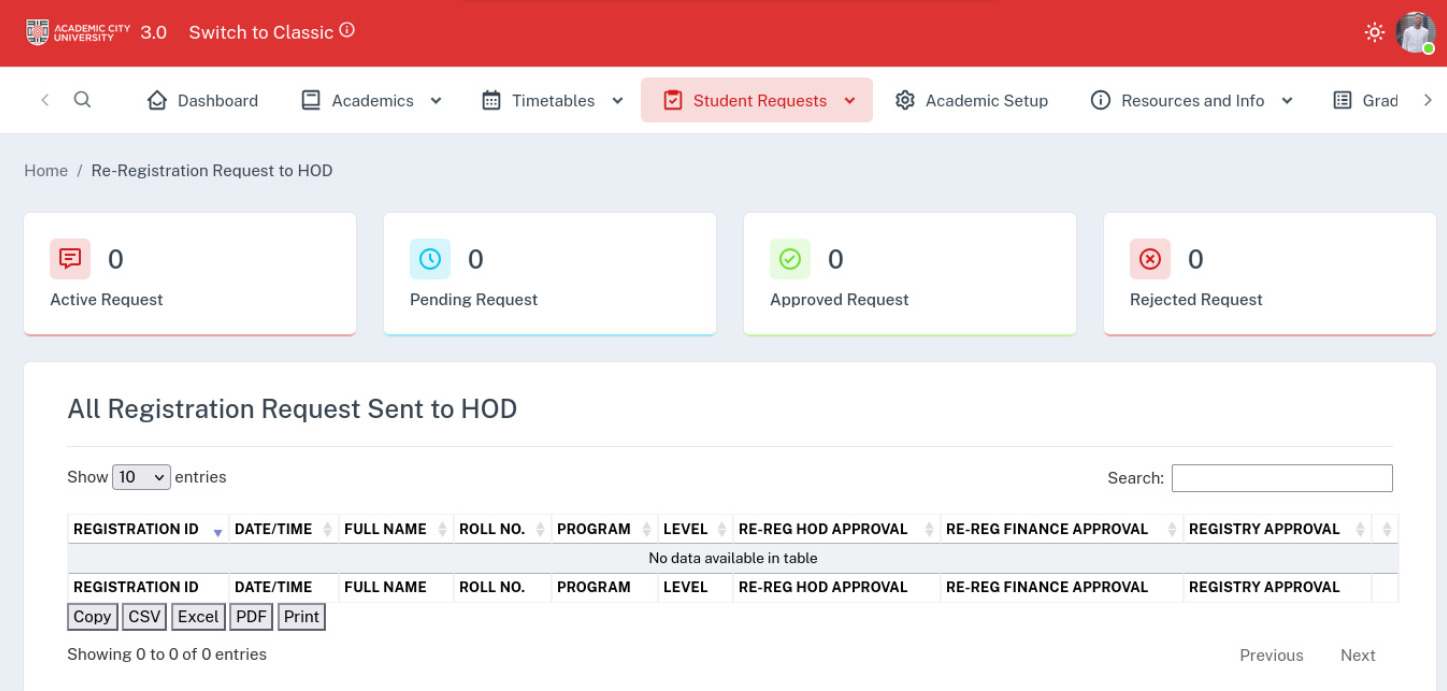
This
page handles requests from returning students who need to re-register
for their courses (often after returning from a deferral or suspension).
Dashboard Cards: At the top, you see a quick summary of the workload:
Active Request: Requests currently open.
Pending Request: Requests waiting for your approval.
Approved Request: Requests you have cleared.
Rejected Request: Requests you have declined.
The Data Table: The main table shows the "All Registration Request Sent to HOD". It lists the student details, program, and level.
Approval Columns: Notice the last three columns: RE-REG HOD APPROVAL, RE-REG FINANCE APPROVAL, and REGISTRY APPROVAL. This shows you the workflow. The HOD must approve it first, then Finance verifies payment, and finally, Registry makes it official.
2. Sem Repeat (Semester Repeat)
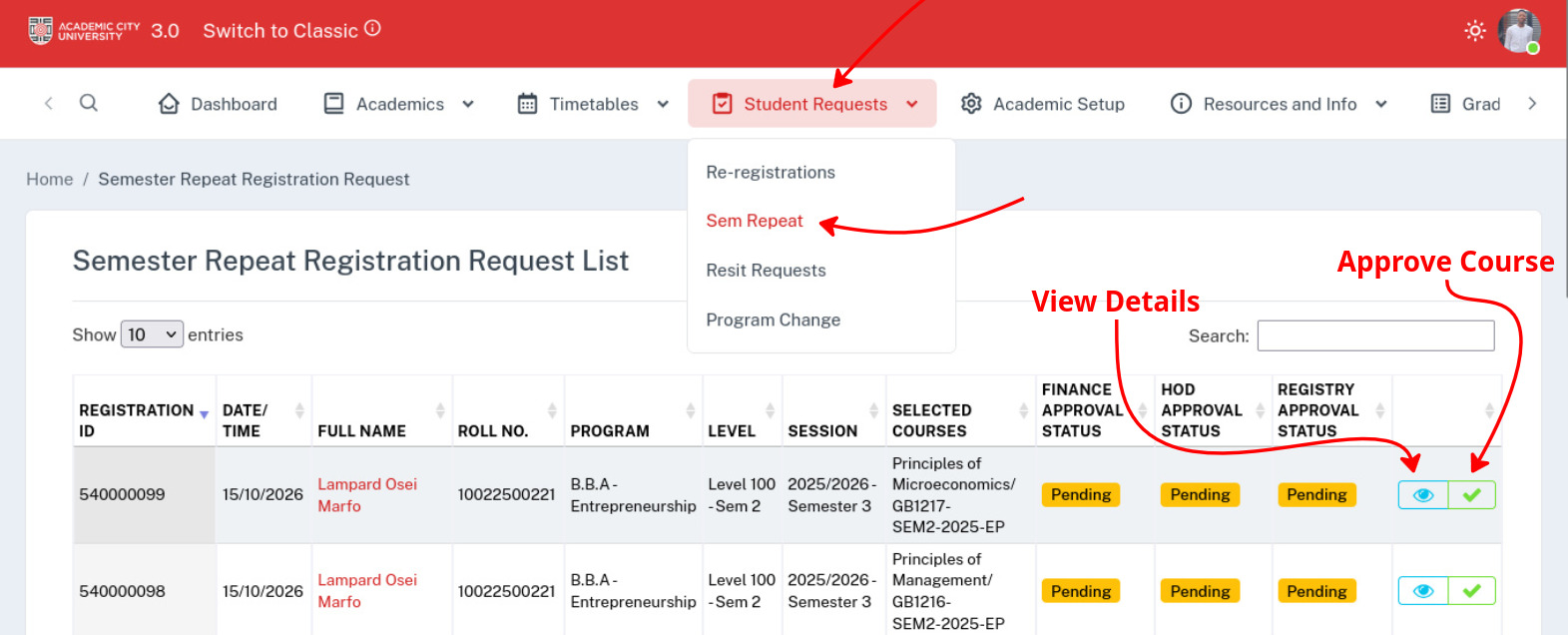
This section is for students who failed a course and need to repeat it in the current semester.
Semester Repeat Registration Request List: The main table (Image 4) shows the student's details, the specific course they want to repeat, and the status of Finance, HOD, and Registry approvals.
Action Buttons: On the right side of the table, there are two important icons:
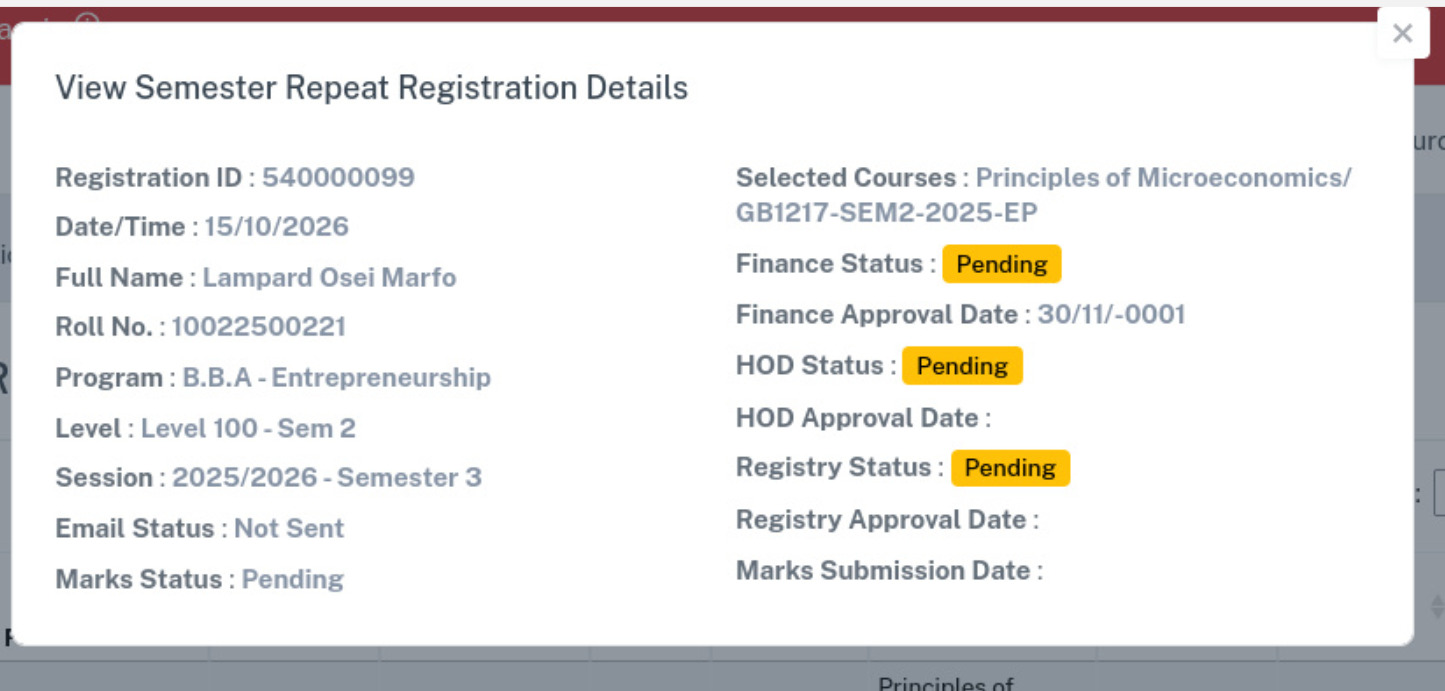
View Details (Blue Eye Icon): Clicking this opens a pop-up window (Image 3). This popup is a snapshot of the request. It shows you the student's info, the specific course they selected (e.g., Principles of Microeconomics), and the status of every department (Finance, HOD, Registry, Marks). If a request is stuck on "Pending," this popup tells you exactly which department is holding it up.
Approve Course (Green Checkmark): If you have reviewed the request and approve of the student retaking the course, click this green checkmark to push the request forward.

3. Resit Requests
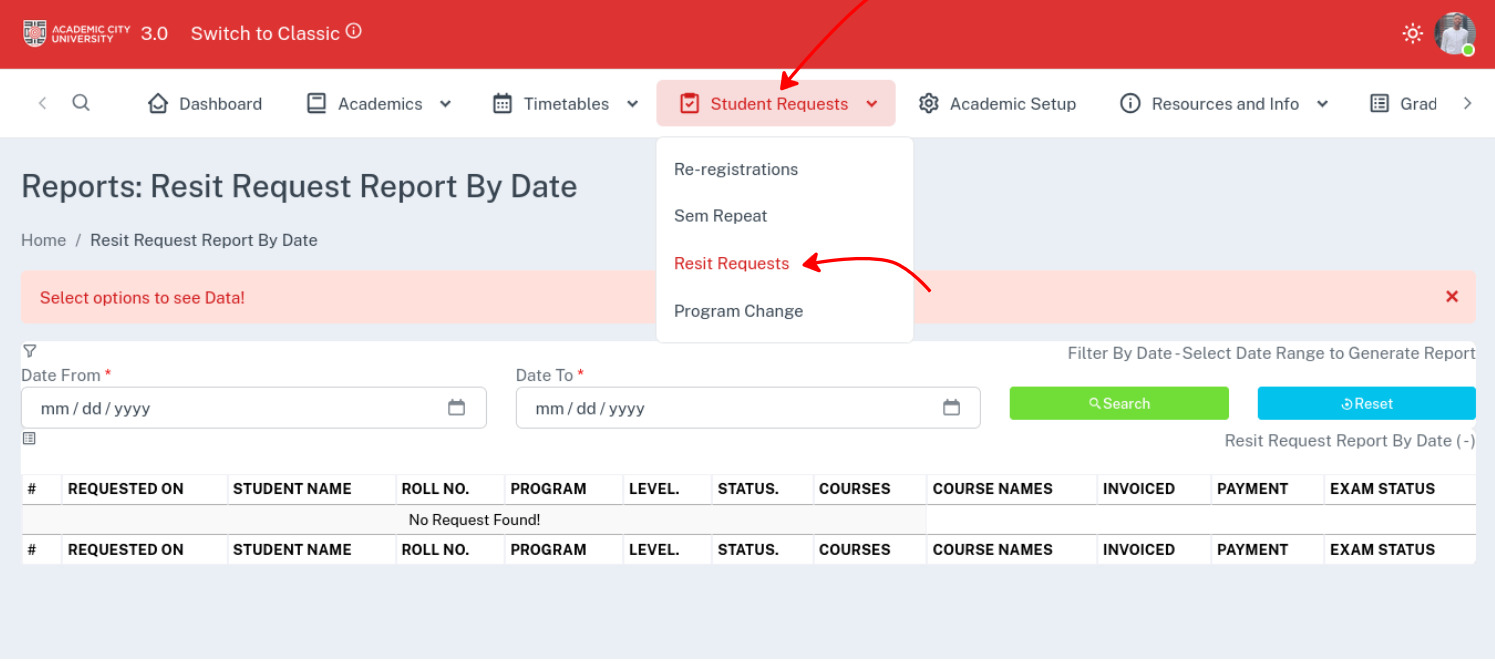
This is a Reporting Page
rather than a list of individual approvals. It allows the HOD to
generate a report of all students who have applied to resit an exam.
Filter By Date: You must select a Date From and Date To range and click the green Search button to generate the report.
The Report Table: Once generated, the table displays:
Student Info: Name, Roll No, Program, and Level.
Course Info: The specific courses the student wants to resit.
Administrative Status: It shows if the resit has been Invoiced, the Payment status (has the student paid the resit fee?), and the final Exam Status.
HOD Tip: This report is highly useful at the end of the semester to ensure only students who have paid their resit fees are allowed to sit for the exams.
4. Program Change
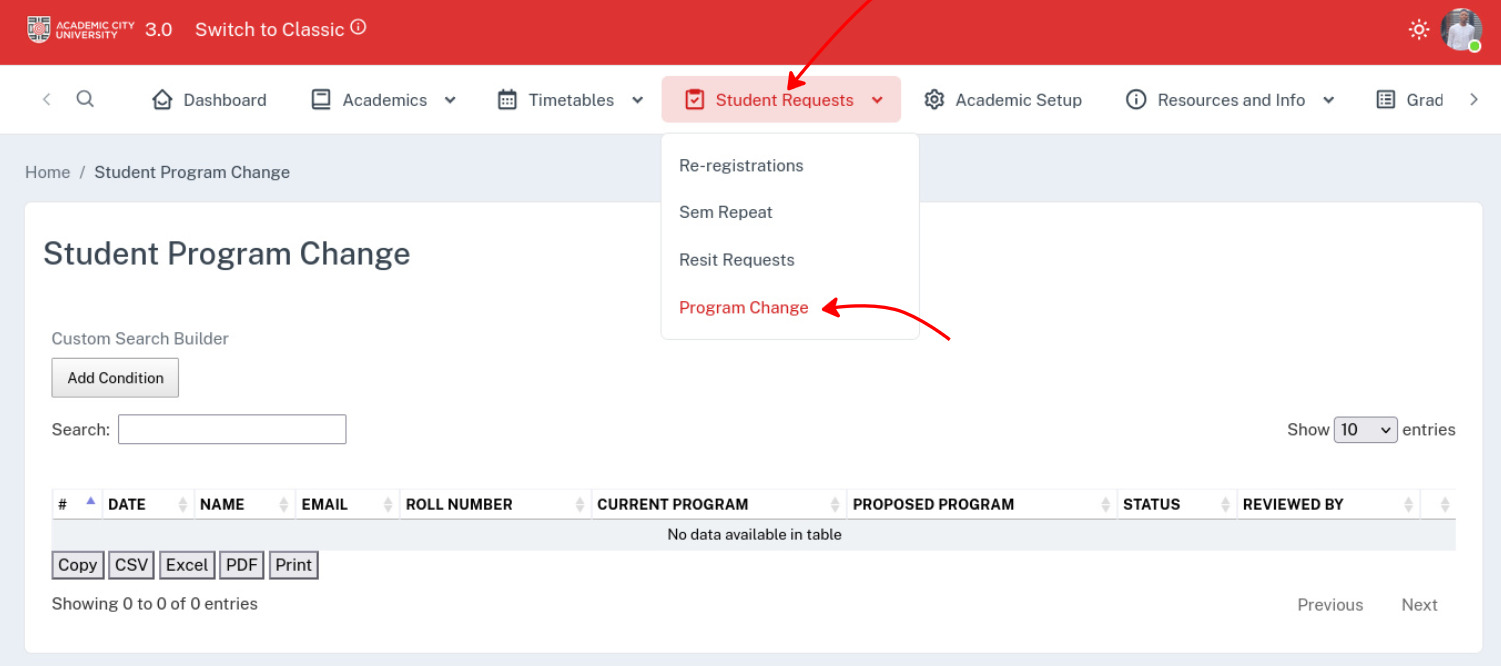
This
page is used when a student applies to switch from one degree program
to another (e.g., moving from B.B.A Accounting to B.A. Advertising).
The Table: It shows the date of the request, the student's name and roll number, and most importantly, their CURRENT PROGRAM and their PROPOSED PROGRAM.
Reviewing: The STATUS column shows if the request is pending, and the REVIEWED BY column shows who is currently handling it. The HOD uses this to ensure the student meets the entry requirements for the new program before approving the switch.