
The Timetables module allows you to view the weekly class schedules for the university. You can access this by hovering over the Timetables tab in the top navigation bar, which reveals a dropdown menu with three options: Lecturer Timetables, Student Timetables, and Room Timetables.
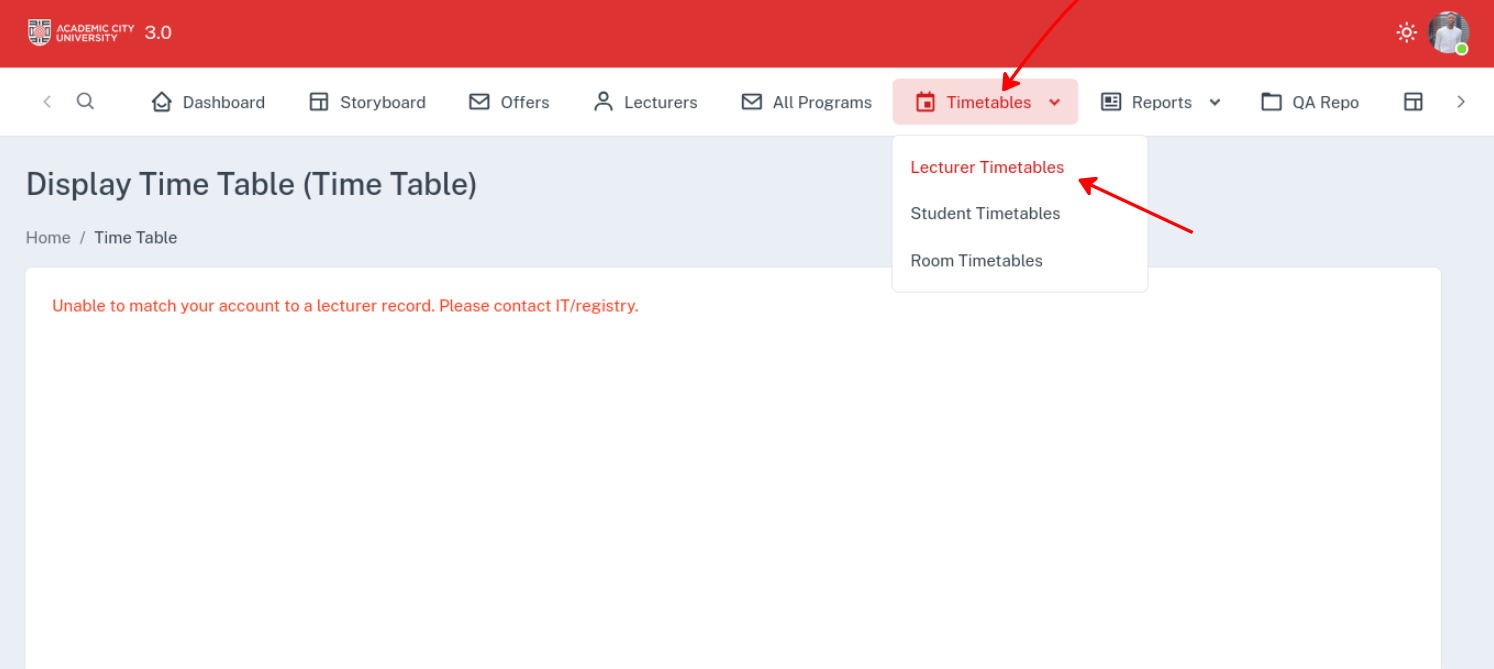
If you click Lecturer Timetables, the system attempts to pull up the schedule for the currently logged-in user.
Why you see an error message: In the screenshot, a red error message appears: "Unable to match your account to a lecturer record. Please contact IT/registry."
Explanation: This happens because your QA account is an administrative account, not a lecturer account. The system is looking for your name in the teaching staff database and cannot find it.
How to check a lecturer's schedule: To view a specific lecturer's timetable, you should use the Student Timetables or Room Timetables instead, or search for the lecturer's name in the main "Lecturers" tab to see their assigned courses.
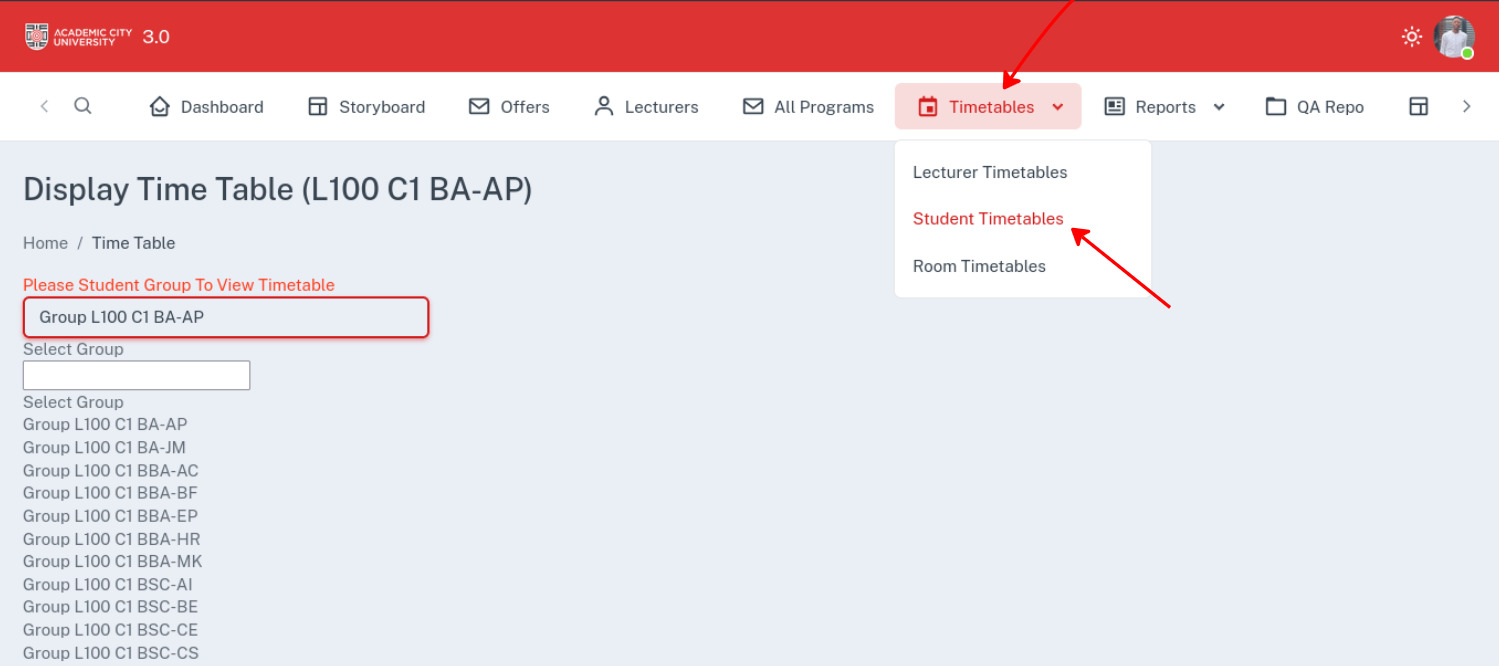
This is the most commonly used view. It allows you to see the schedule for a specific class or cohort of students.
Step 1: Select the Group
Click Student Timetables from the dropdown.
You will see a search box labeled "Select Group".
Start typing or click the box to see a dropdown list of all student groups. The groups are named using a specific format: Group [Level] [Class/Section] [Program Code].
Example:
Group L100 C1 BA-APmeans Level 100, Class 1, studying BA Advertising & Public Relations.
Select the group you want to view.
Step 2: View the Timetable Grid
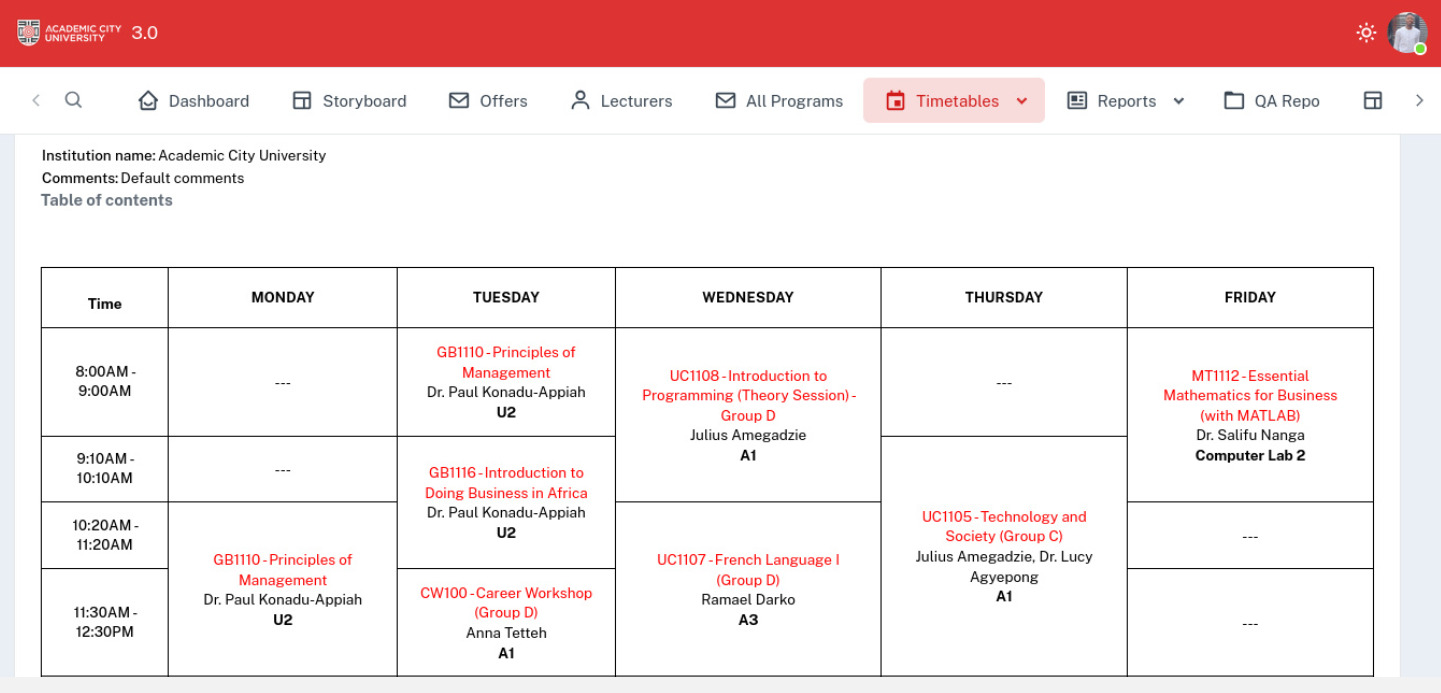
Once a group is selected, their full weekly schedule appears.
Days of the Week: The columns are divided into Monday through Friday.
Time Slots: The left column shows the time blocks (e.g., 8:00AM - 9:00AM, 10:20AM - 11:20AM).
The Schedule Blocks (Red Text): Inside the grid, you will see red text for each class. It displays:
Course Code & Name: (e.g.,
GB110 - Principles of Management).Lecturer: Who is teaching (e.g.,
Dr. Paul Konadu-Appiah).Room/Venue Code: (e.g.,
U2,A1).Group: Confirms which group the class is for (e.g.,
Group D).
Free Periods: The
---symbol means there is no class scheduled for that group at that specific time.
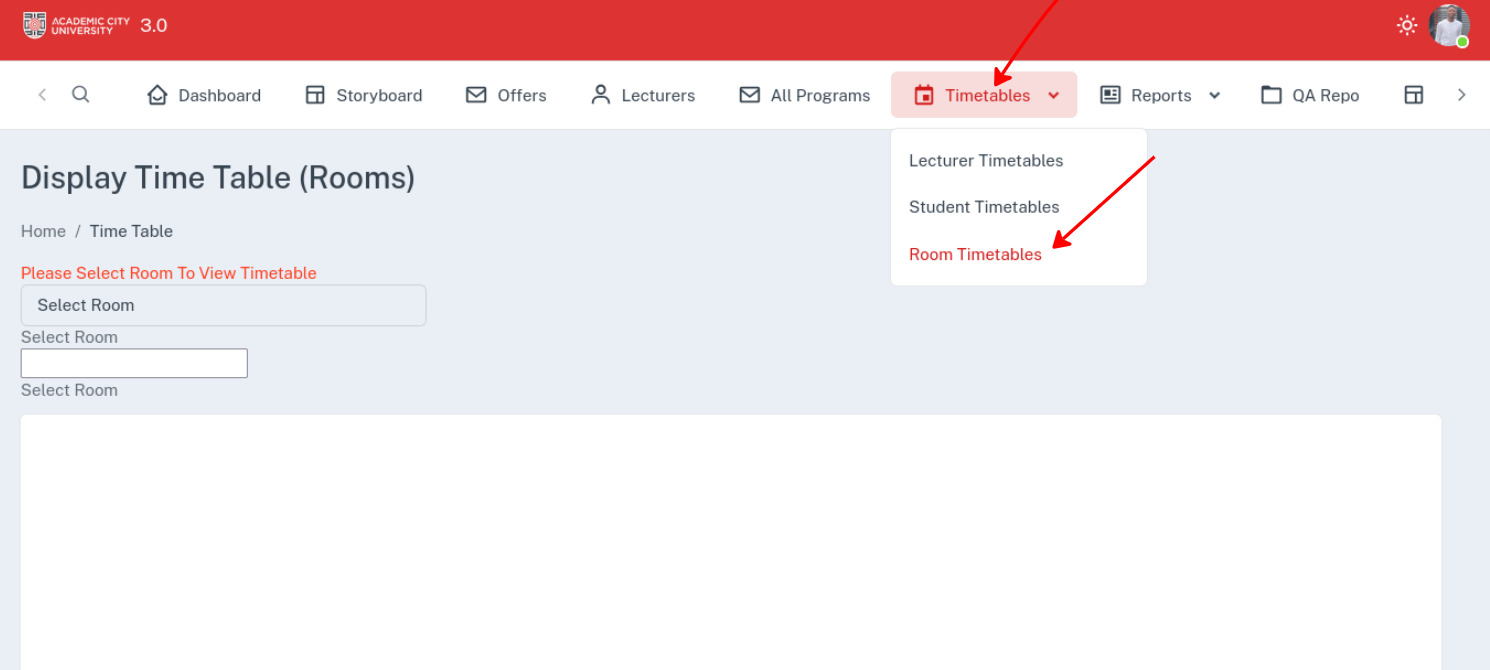
This view is used to see how a specific physical location (classroom, lab, or auditorium) is being utilized throughout the week.
Click Room Timetables from the dropdown.
You will see a search box labeled "Select Room".
Click the box to choose a room (e.g., Computer Lab 2, Main Auditorium, A1).
Once selected, a grid (similar to the student timetable) will appear, showing every class booked in that room for the week.
💡 How QA Uses the Timetable Module:
Clash Detection: You can check if a lecturer is scheduled to be in two places at once, or if a group of students has two classes booked at the exact same time.
Room Capacity Checks: By selecting a room and seeing which group is assigned there, you can verify if a Level 100 class of 300 students has been assigned to a tiny classroom.
Student Queries: If a student calls the office to complain that they don't know where their next class is, you can quickly search their group and tell them the exact room and time.