
The Timetables module is a critical tool for the HOD to monitor where staff, students, and resources are supposed to be at any given time during the week.
When you click Timetables in the top menu, a dropdown menu appears with three options: Lecturer Timetable, Student Timetable, and Room Timetable.
1. Lecturer Timetable
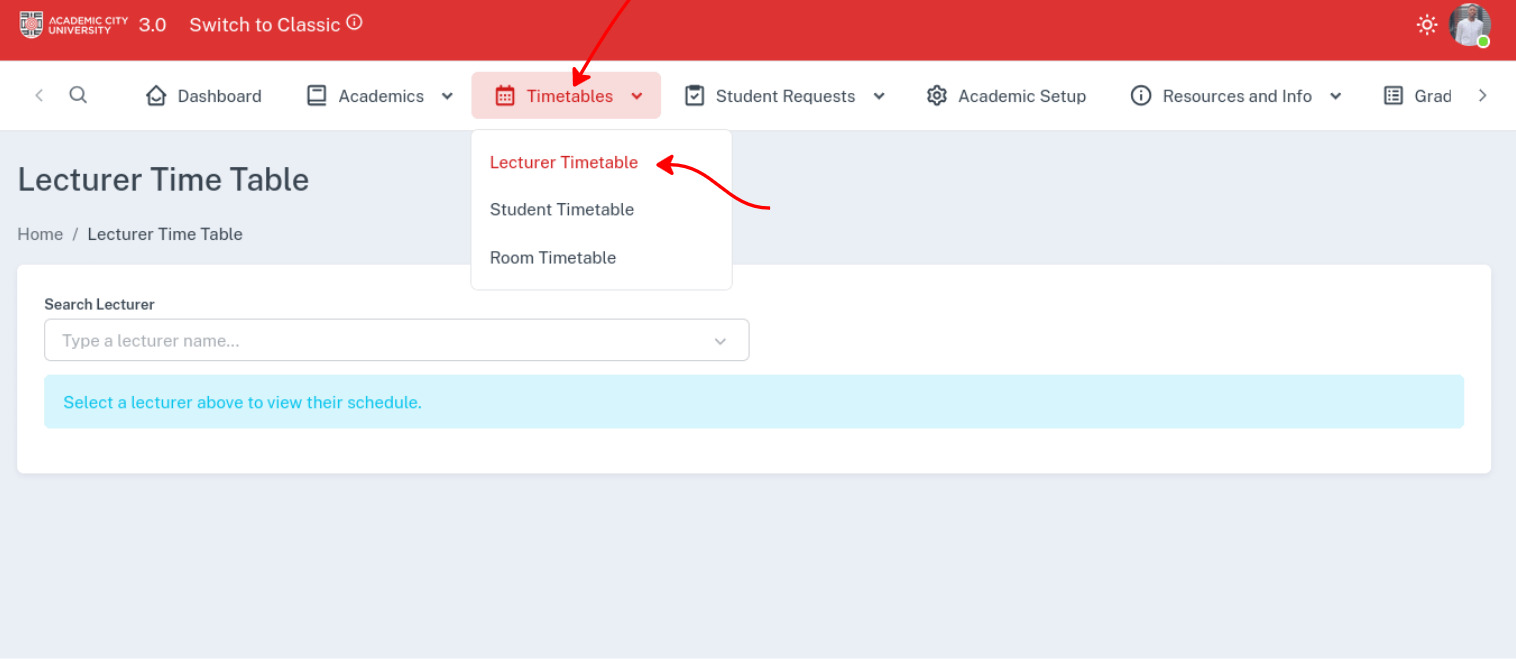
This view allows the HOD to see the weekly teaching schedule for any specific lecturer in their department.
How to use it: Click on Lecturer Timetable from the dropdown. You will be presented with a search box labeled "Search Lecturer".
Action: Start typing the lecturer's name, select them from the dropdown, and the system will generate their weekly class schedule.
Why the HOD uses this:
To verify exactly what days and times a lecturer is teaching.
To check for scheduling clashes (e.g., making sure a lecturer isn't booked to teach two different classes at the exact same time).
To see their teaching load spread across the week.
2. Student Timetable
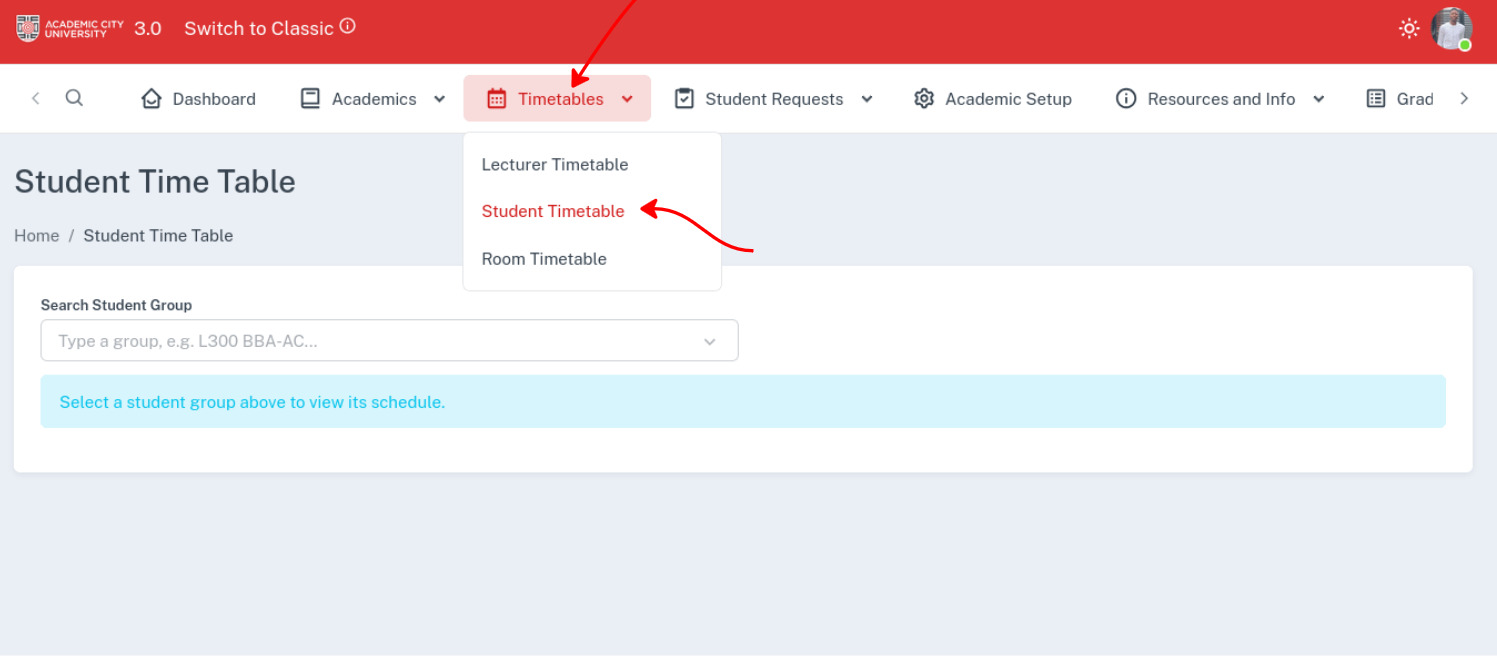
This view allows the HOD to see the schedule for a specific group or class of students.
How to use it: Click on Student Timetable from the dropdown. You will see a search box labeled "Search Student Group".
Action: Type the group code. The placeholder text gives you a hint on the format:
Type a group, e.g., L300 BBA-AC...(Level 300, BBA Accounting).Why the HOD uses this:
If students complain about having too many classes back-to-back, or having no breaks, the HOD can check their weekly grid.
To verify that students have enough free periods for independent study.
To ensure the department isn't scheduling classes during times the university has reserved for general assemblies or other activities.
3. Room Timetable
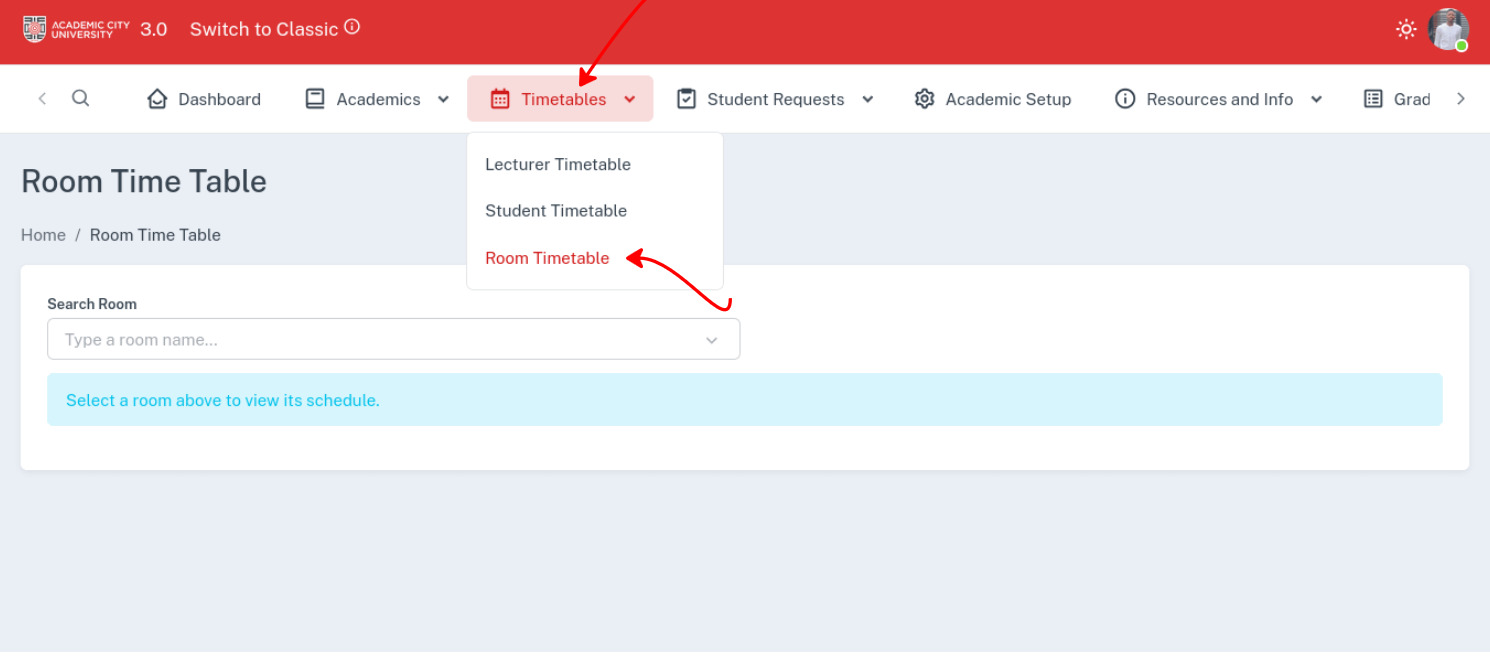
This view allows the HOD to see how a specific physical classroom, lab, or auditorium is being utilized.
How to use it: Click on Room Timetable from the dropdown. You will see a search box labeled "Search Room".
Action: Type the name or code of the room (e.g., "Computer Lab 2" or "U2") and select it.
Why the HOD uses this:
Room Availability: If the department needs to schedule an emergency meeting or a make-up class, the HOD can check the room timetable to find an empty room during that time slot.
Capacity Checks: By looking at which groups are scheduled in which rooms, the HOD can ensure that a massive Level 100 class isn't being squeezed into a tiny 20-person classroom.