
This dropdown menu is the core workspace for an HOD. It allows you to oversee all teaching activities, manage staff and student records, monitor grades, and handle final year project topics for your entire department.
To access these pages, click on the Academics tab in the top navigation bar. A dropdown menu will appear with five options: Lecturers, Courses, Students, Marks, and Project Topic.
1. Lecturers
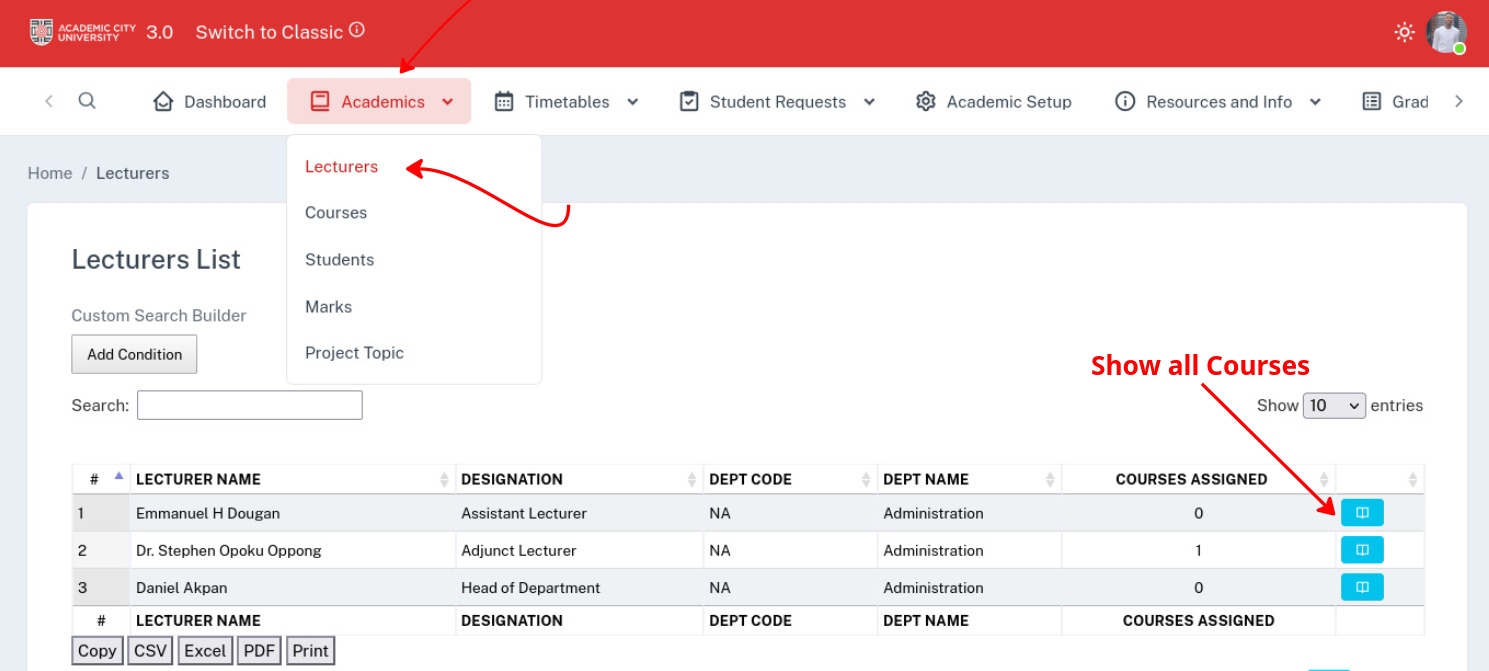
This section allows the HOD to view all teaching staff within their department and monitor their workload.
The Lecturers List: You will see a table showing all staff members, their Designation (e.g., Assistant Lecturer, HOD), Department, and the number of Courses Assigned to them.
Checking Workload: If a lecturer has
0courses assigned, the HOD can instantly see they are underutilized.Show All Courses (Blue Button): Clicking this button next to a lecturer opens their specific profile page.
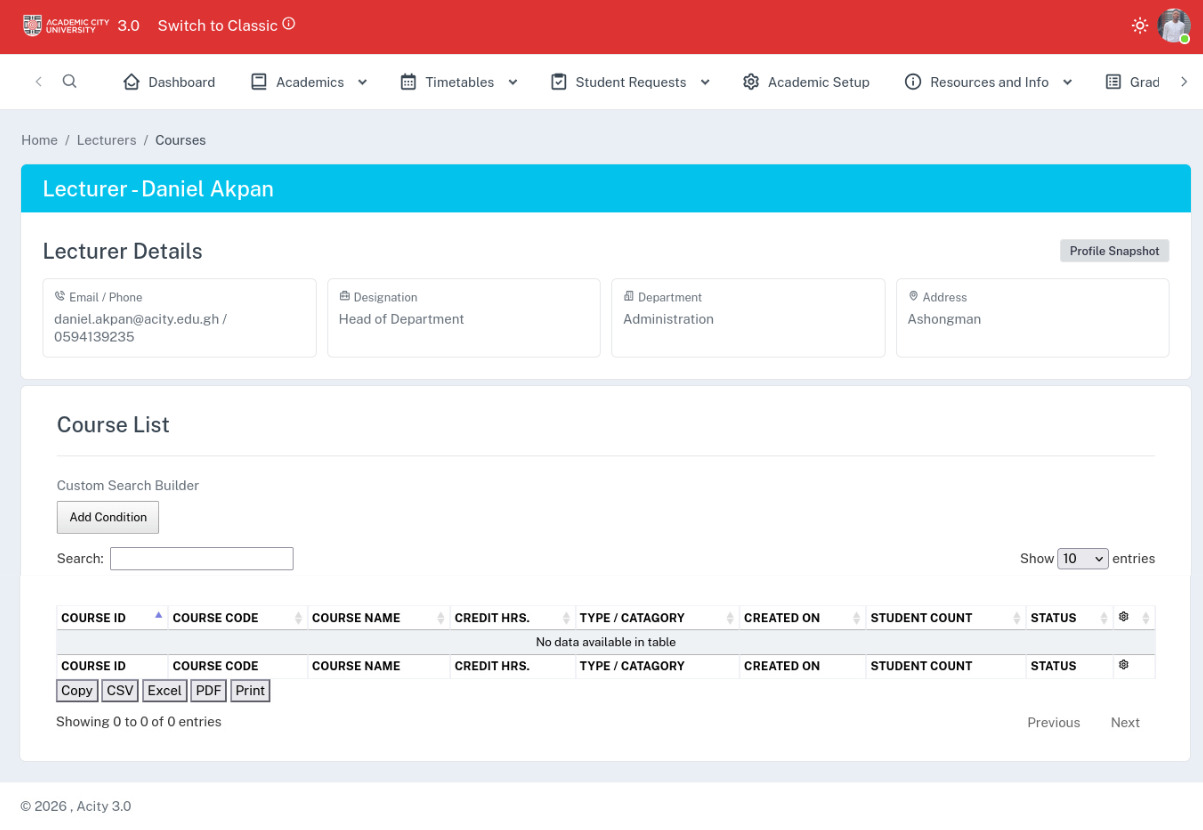
Lecturer Profile: Here you can see their contact details (email, phone, address) and a full Course List showing exactly which courses they are teaching, the credit hours, and how many students are enrolled in those classes.
2. Courses
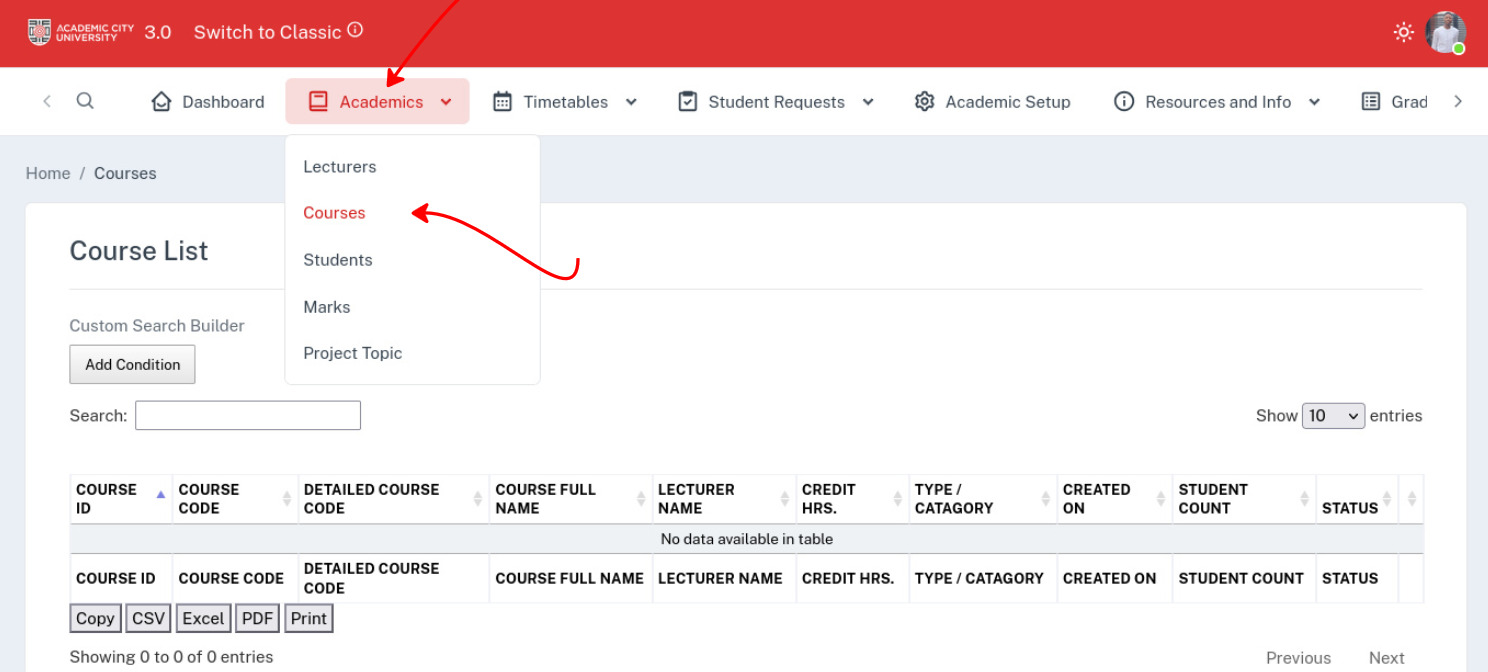
This page provides a master list of every course currently being offered by the department.
The Course List: The table displays the Course ID, Course Code, Detailed Course Name, Lecturer Name (who is teaching it), Credit Hours, and Student Count.
Why it matters: The HOD uses this to ensure that every course has a lecturer assigned to it and to track how many students are taking each class.
3. Students
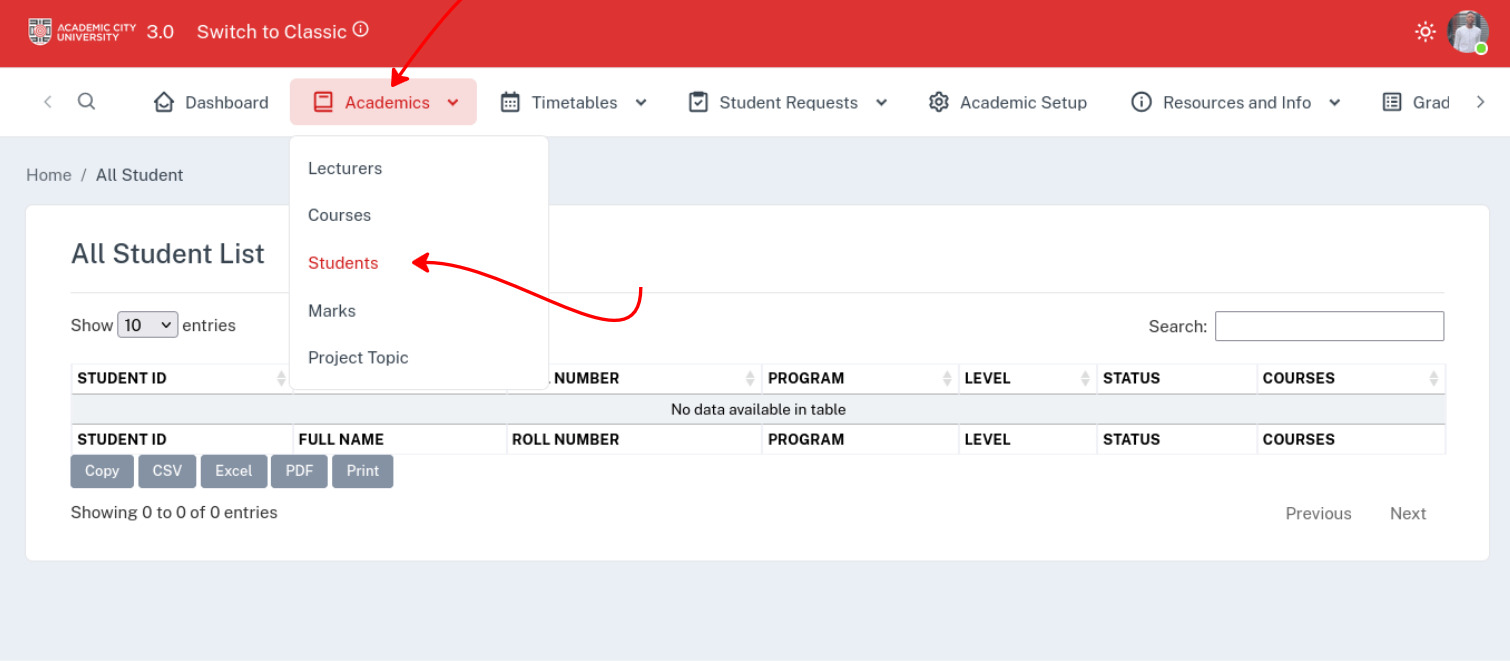
This is a directory of every student taking courses within the department.
All Student List: The table shows the Student ID, Full Name, Roll Number, Program, Level, and Status (e.g., Active).
Why it matters: If a student has an issue, the HOD can quickly look them up here to see their program, current level, and how many courses they are currently registered for.
4. Marks
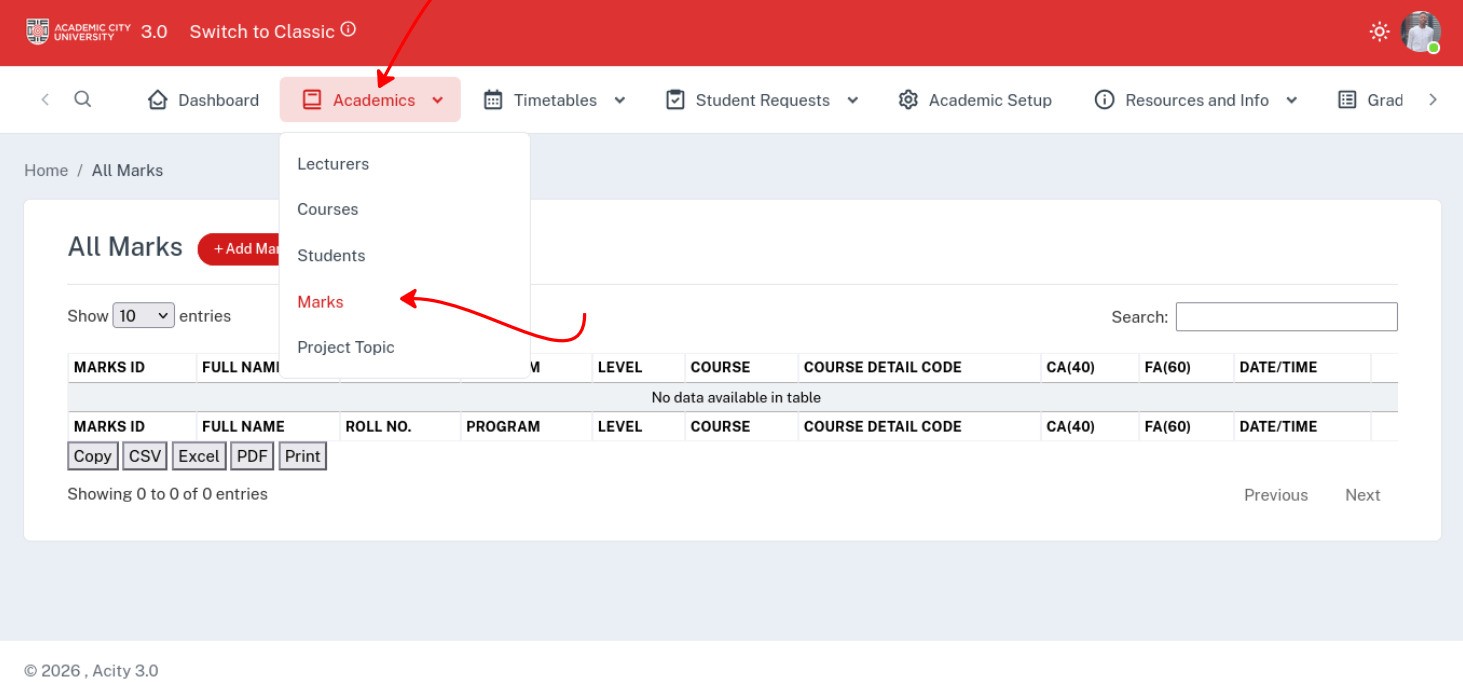
This is a critical administrative page for the HOD. It allows you to view and manage the grades for the entire department.
All Marks Table: This table lists every grade entered by your lecturers.
Understanding the Columns:
CA (40): Continuous Assessment score (out of 40).
FA (60): Final Assessment/Exam score (out of 60).
Total: The final grade (CA + FA).
+ Add Marks (Red Button): While lecturers usually enter their own grades, this button allows the HOD to manually add or correct a mark if a lecturer is unable to do so or if there is an administrative error.
5. Project Topic
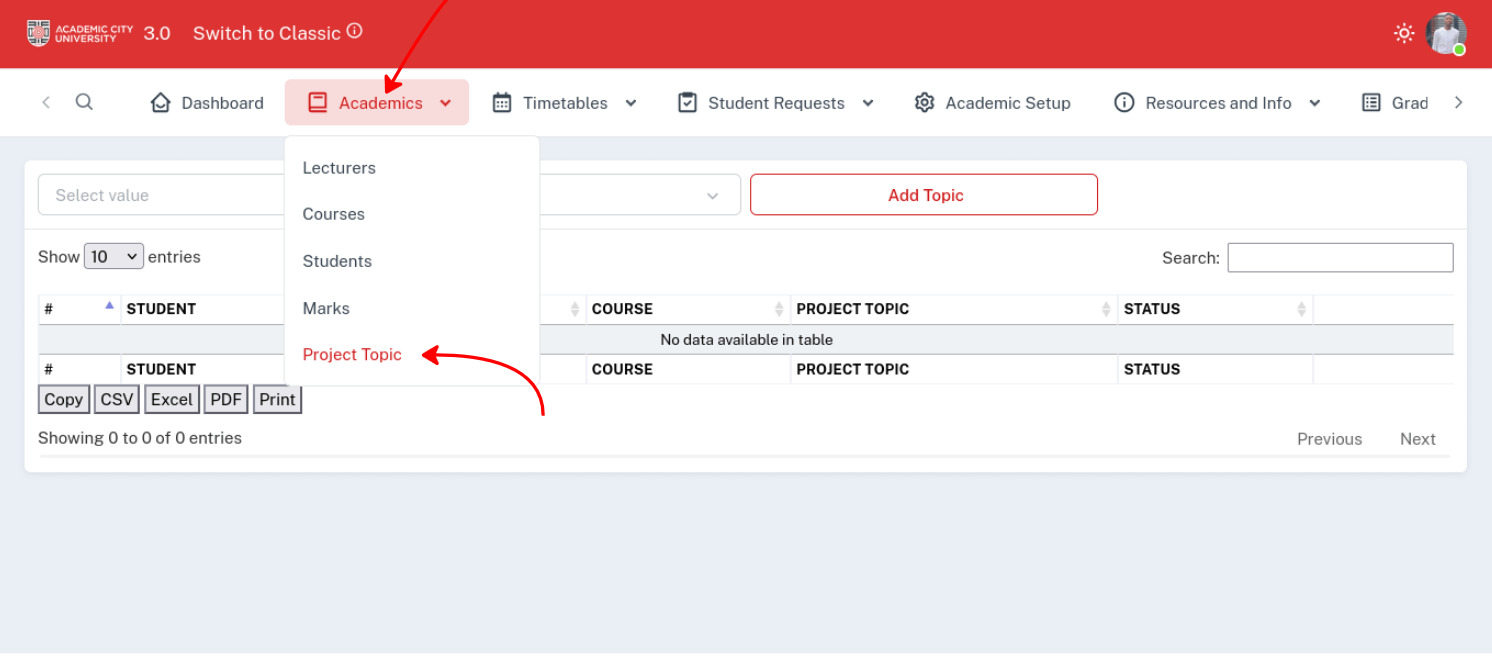
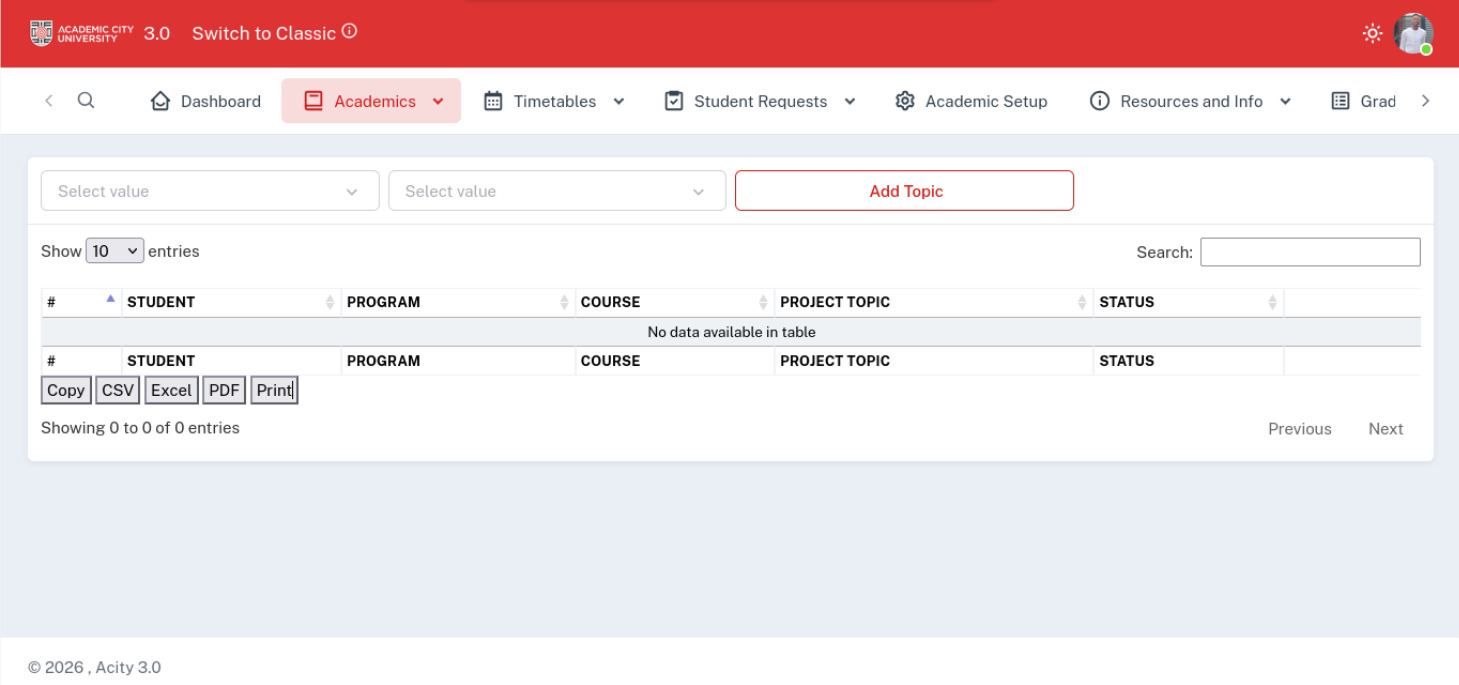
This page is used to manage the final-year projects or dissertations for students in the department.
Filters & Add Topic: At the top, you can use the drop-down menus to filter by program or level. The red "Add Topic" button allows the HOD to officially register a new project topic into the system.
The Table: It displays the Student assigned to the project, their Program, Course, the approved Project Topic, and the Status (e.g., pending approval, approved).
Why it matters: It keeps a centralized, official record of what every final-year student is researching, ensuring topics are approved by the department.